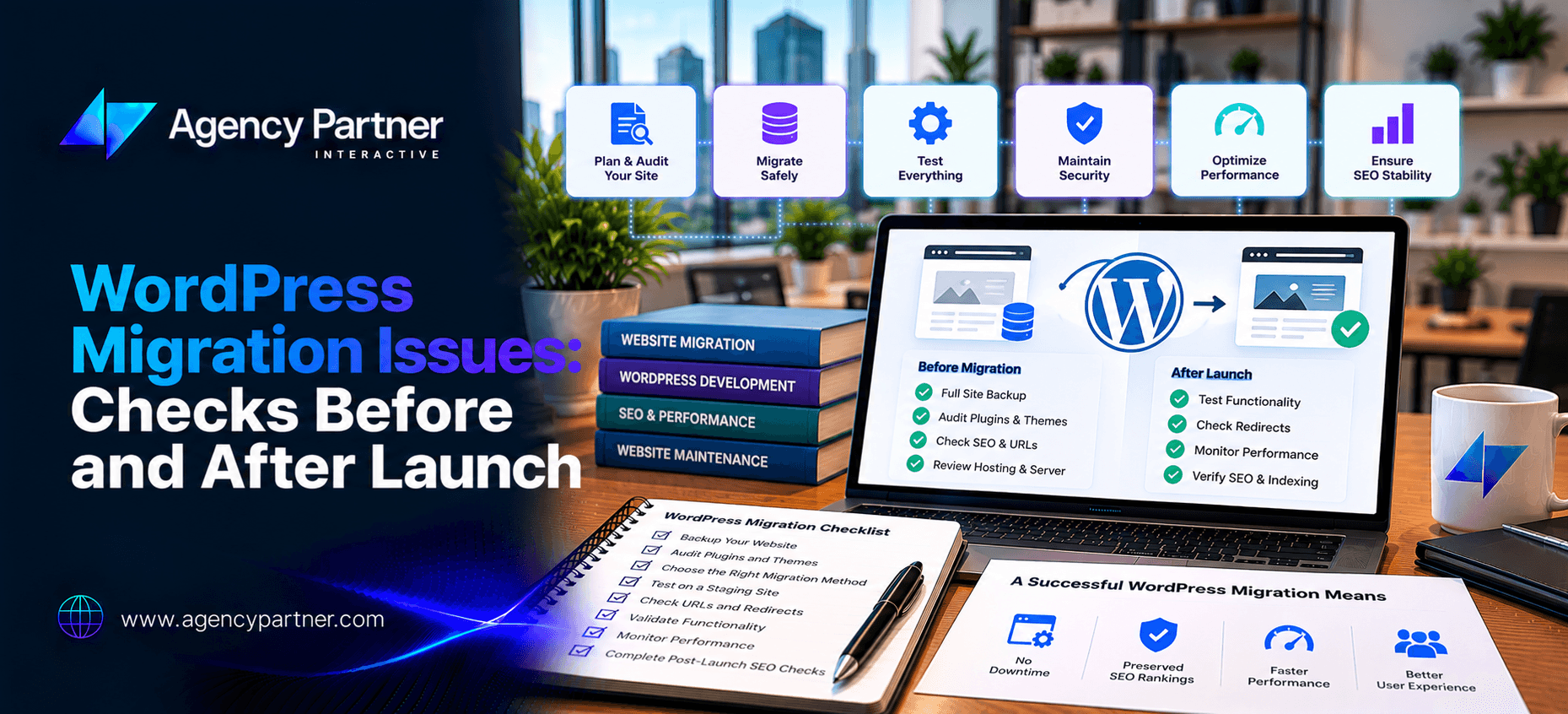
A reliable WordPress migration checklist should cover technical settings, SEO, website features, and data security. Testing before launch helps catch errors early, while post-launch monitoring protects your website’s performance, traffic, and leads. Moving a WordPress website should make your business stronger, not create new problems.
But even a small mistake can cause trouble. Your contact forms may stop working. Product images may disappear. Important pages may return errors, and your website could lose search visibility. For businesses that depend on online leads or sales, these problems can be costly. The good news is that most WordPress migration issues can be prevented with proper planning.
Whether you’re changing hosting providers, moving to a new domain, or rebuilding your website, you need to know what to check before and after launch. This guide explains the most common problems, how to avoid them, and what to do when something goes wrong.
What Are the Most Common WordPress Migration Issues?
WordPress migration involves moving website files, database content, and settings to another environment. Problems often occur when part of the website moves without the settings or files it needs.
For example, your homepage may load correctly while internal pages return errors. Images may still point to the old server, or plugins may stop working because the new hosting setup uses a different PHP version. Database connection errors are another common problem. These can prevent the entire website from loading.
Search visibility may also suffer when redirects, canonical tags, or indexing settings are incorrect. Not every migration causes these problems. However, understanding the risks makes them easier to prevent.
What Should You Check Before Migrating WordPress?
A successful migration starts before you move a single file. You need to understand how your current website works and which parts are important to your business.
Create a Complete Website Backup
Start by backing up your WordPress database and website files. Your backup should include themes, plugins, media uploads, and important configuration files. Store a copy outside your current hosting account. You should also test whether the backup can be restored. A backup is only useful if it works when you need it.
Record Your Current Website Performance
Before migration, review your website’s current performance. Use Google Analytics and Google Search Console to record organic traffic, important landing pages, conversions, and indexing status. Also check website speed and existing technical errors. These records provide a starting point for website migration testing after launch. If traffic or conversions drop, you can compare the results with your previous performance.
Create a URL and Redirect Plan
If your website URLs will change, map each old page to its new destination. For example, an old service page should redirect to the matching new service page. Google recommends permanent server-side redirects, such as 301 or 308, for permanent URL changes.
Avoid redirecting every old page to the homepage. If you’re only changing hosting providers and keeping the same URLs, new redirects may not be necessary.
Test the New Website on Staging
A staging website allows your team to test the new environment before customers see it. Check whether your theme, plugins, and custom features work correctly. Make sure the new server supports your WordPress and PHP requirements.
Keep staging pages private so search engines do not index unfinished content. This preparation reduces the need for urgent migration troubleshooting during launch.
WordPress Migration Checklist: What to Test Before Launch
Once your website has been copied to the new environment, review its main features. Do not assume everything works because the homepage looks correct.
Essential Pre-Launch Checks
- Content and navigation: Confirm that pages, posts, menus, and internal links work.
- Images and media: Check that photos, videos, and downloadable files load.
- Contact forms: Submit test inquiries and confirm they reach the right inbox or CRM.
- Plugins and themes: Check important features and page layouts.
- Security: Confirm HTTPS, login access, and user permissions.
- SEO: Review page titles, canonical tags, redirects, and indexing settings.
- Ecommerce: Test product pages, carts, checkout, and order emails in a safe test environment.
These checks help identify errors before visitors encounter them. For an ecommerce website, payment testing is especially important. Use approved test payment methods rather than real customer payment details.
Why Is Website Migration Testing Important?
Website migration testing checks whether your website still supports the actions visitors need to complete. A visual review is not enough. For example, a contact form may appear normal but fail to send submissions.
A product page may load correctly while the checkout process stops working. Testing should follow real customer journeys. For a service business, this might mean opening a landing page, completing a contact form, and confirming that the lead reaches the sales team.
For an online store, it means testing the full buying process. The goal is simple: visitors should be able to use the new website without disruption.
How Do You Prevent Website Downtime During Migration?
Downtime is one of the most serious WordPress migration issues because it can stop customers from reaching your website. It often happens when DNS records point to the wrong server or the new hosting environment is not ready.
Before launch, confirm that the new server works correctly. Choose a low-traffic period for the move. This reduces the number of visitors affected if something goes wrong. Keep your old hosting account active until the new website is stable.
You should also prepare a rollback plan. If a major problem occurs, your team needs to know how to restore the previous setup. DNS changes can take time to reach different networks. During this period, some visitors may reach the old server while others reach the new one. For websites that receive orders or customer data, plan how new records will be handled during the switch.
How Do You Fix Broken Links and Missing Images?
Broken links and missing images often appear after a WordPress move. These problems may result from incorrect URLs, incomplete file transfers, or outdated database references. Start by checking the WordPress Address and Site Address settings.
Make sure both point to the correct location. Next, review your permalink settings and test important pages. If images are missing, confirm that the uploads folder transferred correctly.
Some themes and plugins store URLs inside the database. These references may still point to the old domain. According to WordPress documentation, basic text replacement can damage certain database values because of how the data is stored. Use a WordPress-aware migration tool or WP-CLI search-and-replace process. Good migration troubleshooting starts by identifying the cause instead of making random changes.
Why Does WordPress Show a Database Connection Error?
The message “Error establishing a database connection” means WordPress cannot connect to its database. This often happens when the new hosting environment uses different database credentials.
Confirm that the database name, username, password, and host are correct. Next, verify that the database was imported and that the user has the required permissions. If the settings appear correct, review the server logs. Avoid changing database files without a backup.
If the problem continues, contact your hosting provider or development team.
What SEO Checks Matter After WordPress Migration?
A website may work perfectly for visitors while still having search engine problems. That’s why SEO must be part of your WordPress migration checklist. Incorrect redirects, blocked pages, and missing metadata can affect how Google finds and displays your content.
Post-Migration SEO Checklist
| SEO element | What to check |
| Redirects | Old URLs reach the correct new pages |
| Canonical tags | Pages reference their intended live URLs |
| Indexing settings | Important pages are not blocked by noindex |
| XML sitemap | Sitemap contains the correct live URLs |
| Internal links | Links point to the correct pages |
| Search Console | Indexing and crawl errors are reviewed |
| Analytics | Traffic and conversion tracking work |
Google recommends keeping permanent redirects for at least one year after a URL-changing migration.
You should also submit your updated sitemap through Google Search Console.
If you changed domains, review whether Google’s Change of Address tool applies to your move.
These steps help search engines understand your new website structure.
Will WordPress Migration Affect Your Google Rankings?
A migration can affect search rankings, especially when URLs or domains change. Google explains that search visibility may fluctuate while it processes the move. For a small or medium website, this process may take several weeks. Larger websites can take longer.
A temporary ranking change does not always mean something is wrong. However, a sharp decline in traffic should be investigated. Check redirects, indexing rules, server errors, and missing content.
Compare your results with the data collected before migration. The goal is to identify technical problems early rather than wait for traffic to recover on its own.
What Should You Monitor After Launch?
Migration work continues after your website goes live. During the first 24 hours, focus on website access, forms, payments, and major errors. Over the first week, review broken links, redirects, server logs, and page speed.
During the first month, monitor organic traffic, indexing, and conversions. Continue tracking performance over the following months, especially after a domain change. Effective website migration testing helps you confirm that the new website performs as expected.
For example, if traffic remains stable but contact form submissions drop, the problem may involve a broken form rather than SEO. Regular monitoring helps you find these issues before they affect more customers.
When Should You Hire a WordPress Migration Expert?
Some WordPress websites are simple to move. Others require careful planning because they contain custom code, large databases, ecommerce features, or several integrations.
Professional help may be useful when changing domains, moving a high-traffic website, or transferring sensitive business data.
Agency Partner Interactive provides website migration services for businesses moving between hosting environments, domains, and platforms.
The team supports migration planning, technical checks, and SEO-focused transitions. If your website generates leads or sales, a planned migration can help reduce avoidable disruption.
Planning a WordPress migration? Discuss your website requirements with Agency Partner Interactive.
Final Thoughts: A Successful Migration Needs More Than a Backup
Most WordPress migration issues can be reduced through preparation, testing, and monitoring. Start with a complete backup. Review your existing website performance and prepare a clear migration plan. Before launch, test important features, redirects, and security settings.
After the move, monitor traffic, indexing, forms, and conversions. A reliable WordPress migration checklist helps your team stay organized and catch problems early. Agency Partner Interactive helps businesses move websites with a focus on performance, functionality, and search visibility.
Ready to move your WordPress website? Connect with Agency Partner Interactive to plan your migration.
Frequently Asked Questions
What are the most common WordPress migration issues?
Common problems include website downtime, broken links, missing images, database connection errors, and plugin conflicts. SEO issues may also occur when redirects or indexing settings are incorrect. A staging environment and proper testing can help reduce these risks.
Will migrating my WordPress website affect SEO rankings?
Migration can affect rankings, especially when URLs or domains change. Google may need time to process the move. Correct redirects, canonical tags, sitemaps, and indexing settings help protect search visibility during the transition.
How long does a WordPress website migration take?
A small website may take a few hours to transfer, but planning and testing require additional time. Large websites with custom features, ecommerce data, or complex integrations may need several days or longer.
Why are images missing after WordPress migration?
Missing images often result from incomplete file transfers, incorrect URLs, or file permission errors. Check the uploads folder and database references first. A WordPress-aware search-and-replace tool can help update outdated paths safely.
How do I fix WordPress migration errors after launch?
Start by identifying the affected feature. Check server logs, database settings, plugins, redirects, and file paths. Compare the new website with your backup or staging version. If critical features fail, consider a planned rollback.
What should I test after moving WordPress to a new host?
Test navigation, contact forms, images, login functions, and payment features. Check HTTPS, redirects, page speed, and mobile layouts. Also review Google Search Console for indexing errors and confirm that analytics and conversion tracking still work.